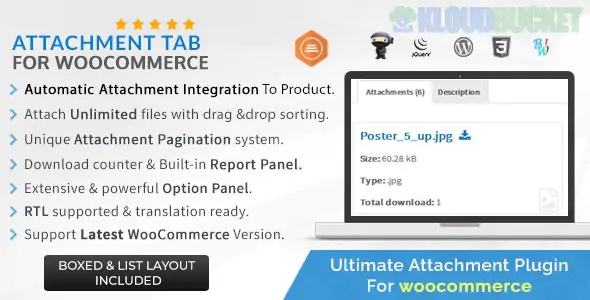
If you are looking to add an "Attachments" or "Downloads" tab to your WooCommerce product pages, you generally have two paths: using a dedicated plugin or adding a small snippet of code.
Here is a breakdown of the best ways to handle this.
Plugins are the easiest way to manage PDFs, user manuals, or technical data sheets without touching any code.
Plugin Name
Best For
Key Feature
Product Attachment for WooCommerce
Ease of Use
Allows you to upload files directly on the product edit page.
WooCommerce Tab Manager
Customization
Lets you create any custom tab (including attachments) and reorder them.
FileBird
Large Libraries
Great if you have hundreds of documents to organize into folders.
Free Downloads WooCommerce
Lead Gen
Forces users to provide an email before downloading the attachment.
If you want to avoid adding another plugin to your site, you can use WooCommerce Custom Fields and a small snippet of code in your functions.php file.
Go to a Product Edit page.
Click Screen Options at the top right and check Custom Fields.
Scroll down to the Custom Fields section and add a new one named product_attachment_url.
Paste the link to your file (uploaded via Media Library) in the value box.
Add this to your child theme's functions.php file:
PHP
// 1. Create the New Tab add_filter( 'woocommerce_product_tabs', 'woo_custom_attachment_tab' ); function woo_custom_attachment_tab( $tabs ) { $tabs['attachments'] = array( 'title' => __( 'Downloads', 'woocommerce' ), 'priority' => 50, 'callback' => 'woo_custom_attachment_tab_content' ); return $tabs; } // 2. Fill the Tab with Content function woo_custom_attachment_tab_content() { global $post; $file_url = get_post_meta( $post->ID, 'product_attachment_url', true ); if ( $file_url ) { echo '<h3>Product Documentation</h3>'; echo '<p><a href="' . esc_url( $file_url ) . '" class="button" target="_blank">Download PDF Manual</a></p>'; } else { echo '<p>No attachments available for this product.</p>'; } }
Reduces Support Tickets: Customers can find manuals and assembly guides themselves.
Professionalism: Keeps the product description clean and organized.
SEO: Search engines can index your technical PDFs, driving more traffic.
Which approach fits your needs better? If you have a specific plugin in mind or need help styling the tab with CSS, let me know!
Subscribe to access unlimited downloads of themes, videos, graphics, plugins, and more premium assets for your creative needs.
.jpg) Help Us to Buy More New Theme/Plugin
Help Us to Buy More New Theme/Plugin
Published:
Jan 04, 2026 15:49 PM
Version:
v1.2.4
Category:
Author:
OtherLicense:
GPL v2 or LaterTags: