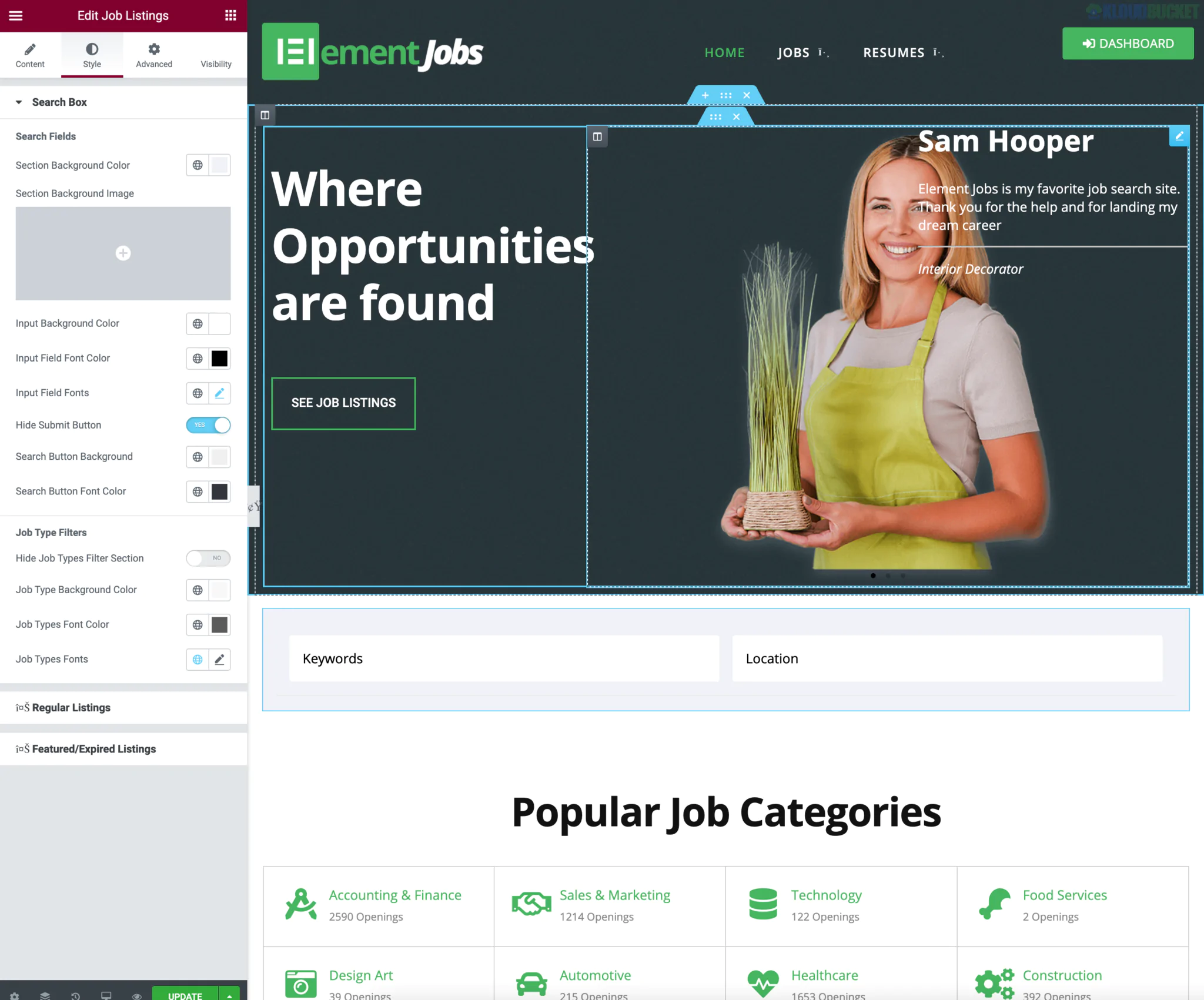
Elementor Connector (specifically by Tiny Giant Studios) is a powerful bridge that allows you to style WP Job Manager elements using the Elementor page builder.
While the connector provides the widgets, the Demo Templates (often sold as part of the "ElementJobs" bundle) provide the pre-designed layouts to help you skip the manual design process.
The Elementor Connector Demo Templates (ElementJobs) typically include a full set of .json files for:
Home Page: A job-focused landing page with search functionality.
Jobs Page: A stylized archive/listing of all available openings.
Single Job Listing: The most crucial part—a professional layout for individual job details.
Submit a Job: A clean, user-friendly frontend form for employers.
Employer Dashboard: A private area for users to manage their listings.
Components: Light and Dark headers, footers, and popups.
If you have purchased or acquired the ElementJobs Demo Templates, follow these steps to set them up:
Extract the Files: The download is usually a .zip file. Unzip it on your computer to find several .json files.
Upload to Elementor Library:
Go to Templates > Saved Templates in your WordPress dashboard.
Click Import Templates at the top.
Upload the .json files one by one (or select all if your server allows).
Create Your Pages:
Create a new page (e.g., "Find a Job").
Click Edit with Elementor.
Click the Folder Icon (Add Template) and select My Templates.
Find the corresponding template (e.g., "Jobs Page") and click Insert.
The Single Job Listing is unique because it requires Elementor Pro and the Theme Builder to function as a dynamic template.
Go to Templates > Theme Builder.
Click Add New and select Single Post.
Note: Set the post type to Jobs.
Design your page or insert the "Single Job" demo template from the library.
Crucial Step: Use the Connector Widgets (found in the Elementor side panel under the "WP Job Manager" category) like Single Job Title, Single Job Meta, and Single Job Company to pull the data dynamically.
Set Display Conditions to "Jobs" and "All" so the layout applies to every job listing automatically.
Plugin Only: Usually around $49 for the Elementor Connector for WP Job Manager.
Bundle (Plugin + Templates): Usually around $79. This is highly recommended if you want the "ElementJobs" demo templates mentioned above.
GPL/Alternative: You may find this on sites like WorldPress IT for approx. $5, though these often lack the developer's pre-configured demo files and support.
WP Job Manager (Free): Must be installed and activated.
Elementor (Free/Pro): Pro is required if you want to use the "Single Job" template builder.
Elementor Connector Plugin: This is the engine that makes the widgets appear inside Elementor.
Would you like me to find a specific tutorial on how to map the "Submit Job" form fields using the Elementor Connector?
Subscribe to access unlimited downloads of themes, videos, graphics, plugins, and more premium assets for your creative needs.
.jpg) Help Us to Buy More New Theme/Plugin
Help Us to Buy More New Theme/Plugin
Published:
Jan 10, 2026 18:51 PM
Version:
v1.1
Category:
Author:
OtherLicense:
GPL v2 or Later