
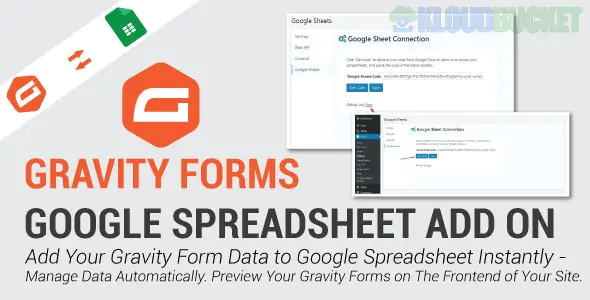
Integrating Gravity Forms with Google Sheets is one of the most effective ways to automate data entry, lead tracking, and reporting.
As of 2026, there are three primary ways to achieve this connection, depending on your budget and whether you need "one-way" or "two-way" syncing.
These allow you to map form fields to spreadsheet columns directly inside your WordPress dashboard.
Gravity Connect (by Gravity Wiz): This is widely considered the premium gold standard.
Feature: It offers two-way sync, meaning if you edit a row in Google Sheets, the entry in Gravity Forms updates, and vice-versa.
Cost: Part of the Gravity Perks bundle or available as a standalone for approx. $59/year.
WPSyncSheets (Lite & Pro): * Lite: A free version is available on the WordPress repository that handles basic real-time exports of new entries.
Pro: Adds support for bulk exporting past entries and uploading file attachments to Google Drive folders.
Google Spreadsheet Addon (by GravityMore): A lightweight alternative specifically for real-time auto-syncing of leads to a sheet.
If you already use other apps (like Slack or a CRM), these "middleman" services are highly reliable.
Zapier: The most popular choice. You’ll need the Gravity Forms Zapier Add-on (included in the Gravity Forms Pro or Elite licenses).
How it works: Submission → Zapier → Create Spreadsheet Row.
Make.com (formerly Integromat): Usually more cost-effective than Zapier for high-volume sites. It allows for more complex "if/then" logic before the data hits your spreadsheet.
Pabbly Connect: A popular "one-time payment" alternative to Zapier that has excellent Gravity Forms integration hooks.
Feature
Direct Add-on (Gravity Connect)
Zapier / Make.com
Free Plugins (WPSyncSheets Lite)
Setup Time
< 5 Minutes
10–15 Minutes
10 Minutes
Sync Type
Real-time / Two-Way
Real-time / One-Way
Real-time / One-Way
Reliability
Very High (Native)
High
Moderate (API dependent)
Cost
Paid ($59+)
Monthly Subscription
Free
Install: Activate your chosen Google Sheets add-on in WordPress.
Authenticate: Go to Forms > Settings > Google Sheets and click Connect to Google.
Create Feed: Open your specific form, go to Settings > Google Sheets, and click Add New.
Map Fields: Select your Spreadsheet and Worksheet. Match your "Form Fields" (e.g., Email) to your "Sheet Columns" (e.g., Column B).
Test: Submit a test entry; it should appear in your sheet within seconds.
Header Rows: Always create your header row (Name, Email, Date) in Google Sheets before setting up the mapping in WordPress.
Privacy: If collecting sensitive data, ensure your Google Sheet sharing settings are set to "Restricted" and not "Anyone with the link."
File Uploads: If your form has a file upload field, most basic integrations only send the URL of the file. Premium versions of WPSyncSheets or Gravity Connect can actually move the file to Google Drive.
Would you like me to help you troubleshoot a connection error, or do you need a specific recommendation for a free vs. paid setup based on your monthly traffic?
Subscribe to access unlimited downloads of themes, videos, graphics, plugins, and more premium assets for your creative needs.
.jpg) Help Us to Buy More New Theme/Plugin
Help Us to Buy More New Theme/Plugin
Published:
Jan 04, 2026 16:24 PM
Version:
v1.3.1
Category:
Author:
OtherLicense:
GPL v2 or LaterTags:
