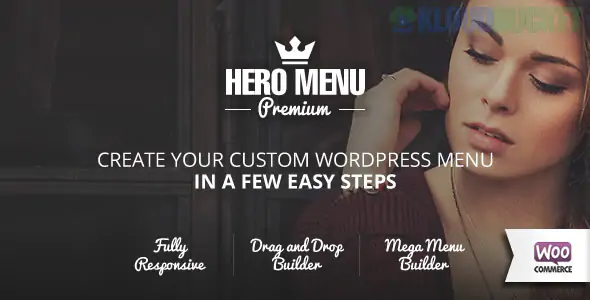
Hero Menu is a premium WordPress plugin that specializes in creating highly customizable, professional mega menus with a focus on ease of use. Developed by Hero Plugins, it allows you to build complex navigation structures—including columns, images, and social icons—using a drag-and-drop interface.
As of late 2025, Hero Menu is recognized for its "brilliant out-of-the-box" performance, meaning it requires minimal setup to look sleek, while still providing deep customization for advanced users.
Intuitive Drag-and-Drop Builder: Built to mimic the native WordPress menu system but with enhanced "snap" functionality for arranging items in columns or grids.
Rich Content Support: Unlike standard menus, you can include:
WooCommerce Integration: Display product categories with preview images or specific products directly in the menu.
Custom HTML & Shortcodes: Embed maps (via Hero Maps), contact forms, or videos.
Dynamic Content: Automatically pull in recent posts or categories.
Mobile-First Responsiveness: Features touch support for Android, iOS, and Windows. You can set specific breakpoints for when the menu should switch to its mobile-optimized version.
Sticky Menu Functionality: Includes settings for a separate sticky menu logo, custom transparency, and distinct "activation distance" (the scroll depth at which the menu sticks).
Deep Styling Options: * 60+ Color Presets: Quickly apply a professional palette.
650+ Google Fonts: Full typography control.
270+ Free Icons: Handcrafted icons included, plus support for custom icon uploads.
Feature
Details
Developer
Hero Plugins
Current Version
1.16.5
Last Updated
October 15, 2025
Compatibility
WordPress 6.7+
Mobile Support
Fully Responsive (Touch Gestures Enabled)
Price Range
~$25 (Regular License)
Since Hero Menu replaces your theme's default navigation, the setup involves an "Integration" step to ensure it takes over correctly.
Installation: Upload the heromenu.zip file via Plugins > Add New.
Menu Integration: Navigate to Hero Menu > Settings > Menu Integration. This is where you select which theme location (e.g., "Primary Menu") Hero Menu should replace.
Create Your Layout: Go to Hero Menu > Menus > Add New. Use the Navigation Structure tab to drag and drop your pages.
Build the Mega Menu: For any top-level item, click the "Mega Menu" toggle. You can then choose your column layout (e.g., 3 columns) and assign content like "Recent Posts" or "Custom HTML" to each column.
Styling: Use the Styling tab to select one of the 60 color presets or manually set your gradients and shadows.
Large E-commerce Stores: Using the WooCommerce integration to let users browse categories visually before clicking.
Corporate Portals: Organizing vast amounts of departmental links into a clean, multi-column "Eyebrow Menu."
News & Magazine Sites: Featuring "Latest News" thumbnails directly inside the navigation dropdowns.
Creative Agencies: Utilizing the "Custom Content" feature to embed a promotional video or a mini contact form in the menu itself.
Pro Tip: For 2026, Menu Roles is a powerful feature to utilize. You can set Hero Menu to show different navigation items based on whether a user is logged in or out. For example, show a "Client Portal" link only to logged-in "Subscribers" to keep your public menu uncluttered.
Would you like me to help you compare Hero Menu vs. UberMenu to see which one handles high-traffic WooCommerce sites better?
How to Create Hero Section in WordPress Using Elementor
While this video focuses on creating a "Hero Section" (the top area of a page), it provides excellent context for how a modern, responsive menu like Hero Menu should visually integrate with your site's header for a professional 2025 look.
Subscribe to access unlimited downloads of themes, videos, graphics, plugins, and more premium assets for your creative needs.
.jpg) Help Us to Buy More New Theme/Plugin
Help Us to Buy More New Theme/Plugin
Published:
Dec 17, 2025 16:07 PM
Version:
v1.16.5
Category:
Author:
All In One PluginLicense:
GPL v2 or Later