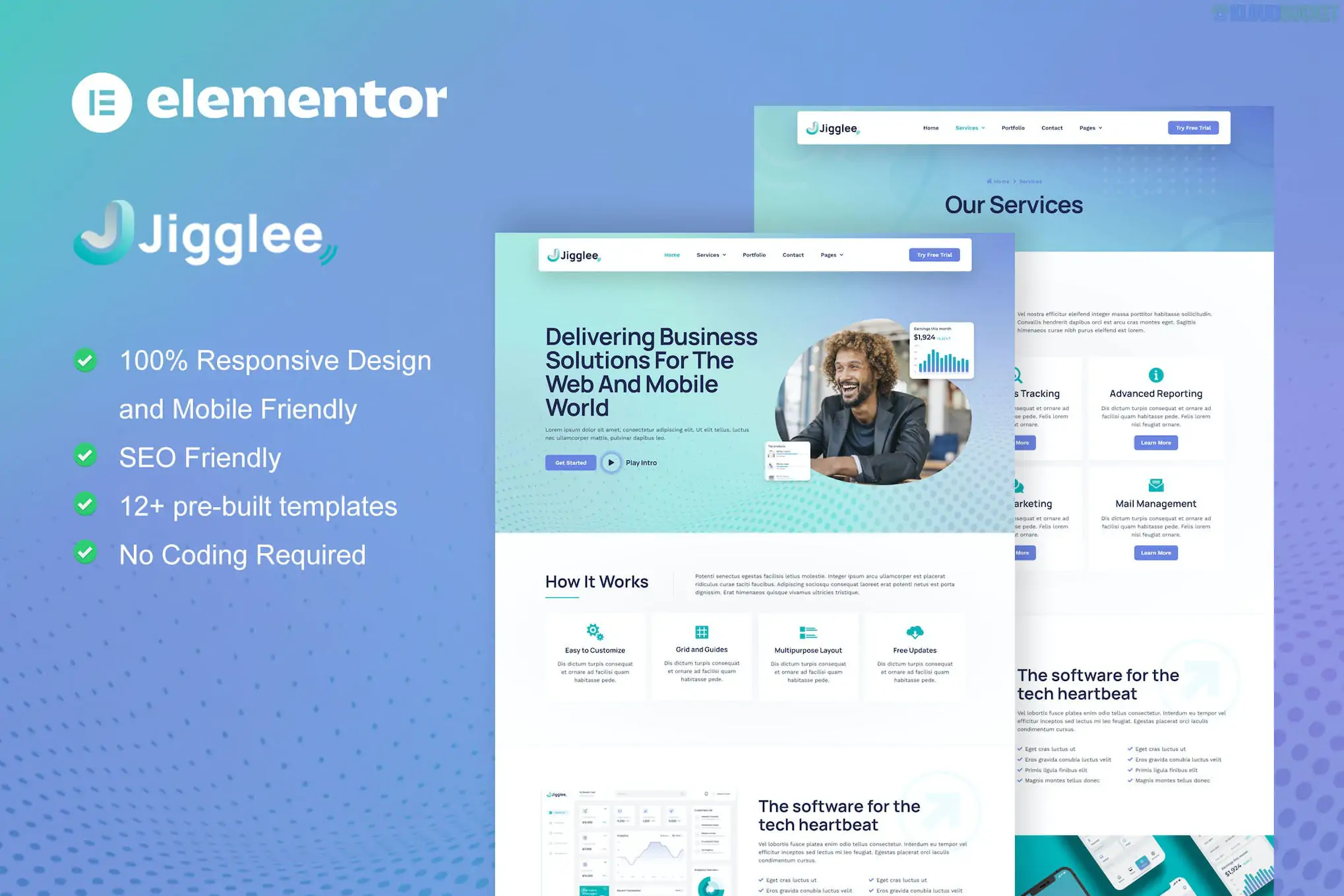
Jigglee (developed by moxcreative) is a clean, modern Elementor Pro Template Kit designed for tech startups, SaaS companies, and digital enterprises. It balances a professional corporate look with creative "tech" elements, making it ideal for software houses or IT service providers.
Because this is an Elementor Pro kit, it utilizes the Pro Theme Builder to handle global site parts like the header and footer, as well as dynamic content layouts.
The kit offers a streamlined selection of pages designed for high conversion and clear information hierarchy:
Homepage: A professional landing page featuring a hero section with subtle animations and service highlights.
About Us: For sharing the startup’s mission, vision, and company journey.
Services & Service Single: Comprehensive layouts to describe specific tech offerings or software features.
Pricing Table: A clear, modern comparison table for subscription tiers or service packages.
Team: Profile blocks to introduce the developers and leaders behind the startup.
Blog & Blog Single: Clean typography and grid layouts for sharing tech trends and company news.
Contact: Integrated forms and social links to capture leads.
FAQ: Professional accordion layouts to address common client questions.
404 Page: A custom-branded error page.
To get Jigglee running exactly as seen in the demo, you will need the following:
Base Theme: Hello Elementor (Highly recommended).
Elementor Pro: Required. Essential for the Header, Footer, and several advanced Pro widgets.
Required Addon:
ElementsKit Lite: Often used in Moxcreative kits for enhanced header/footer building and additional widgets.
Preparation: Go to Elementor > Settings > Features and ensure Flexbox Container is set to Active. This is critical for the modern layouts used in this kit.
Import via Envato Elements:
Install the Envato Elements plugin.
Upload the Kit ZIP file through Elements > Installed Kits.
Step 1: Click "Import Global Kit Styles" first. This applies the "Jigglee" brand colors (typically professional blues and teals) and site-wide typography.
Step 2: Import individual pages one at a time.
Assigning Theme Parts: Go to Templates > Theme Builder to set the "Display Conditions" for your imported Header and Footer to Entire Site.
Logo & Branding: Customize your logo through the Header template; the fonts and colors can be globally managed under Site Settings > Global Colors/Fonts.
Strategic CTAs: Every page is designed with strategically placed "Call to Action" buttons to drive lead generation.
Retina Ready: Optimized for high-resolution displays, ensuring your graphics and icons stay crisp.
Motion & Interactions: Includes subtle entrance animations that give the site a premium "tech" feel without sacrificing loading speed.
Would you like me to help you set up the "Service Single" template to automatically pull content from your WordPress posts, or do you need assistance configuring the Pricing tables?
Subscribe to access unlimited downloads of themes, videos, graphics, plugins, and more premium assets for your creative needs.
.jpg) Help Us to Buy More New Theme/Plugin
Help Us to Buy More New Theme/Plugin
Published:
Jan 30, 2026 14:46 PM
Category:
Author:
OtherLicense:
GPL v2 or Later