Multiple Addresses for WooCommerce Pro by ThemeHigh is a powerful extension that upgrades the standard WooCommerce checkout process. By default, WooCommerce only allows a customer to save one billing and one shipping address. This plugin removes that limitation, allowing customers to store an "Address Book" and even ship individual items from a single cart to different locations.
This is a game-changer for gift-heavy businesses or B2B stores where clients might ship supplies to multiple office branches.
Multi-Address Checkout: Customers can assign different shipping addresses to specific items in their cart during a single checkout session.
Unlimited Saved Addresses: Unlike the free version (which typically limits users to 2 addresses), Pro allows customers to save as many addresses as they need in their "My Account" area.
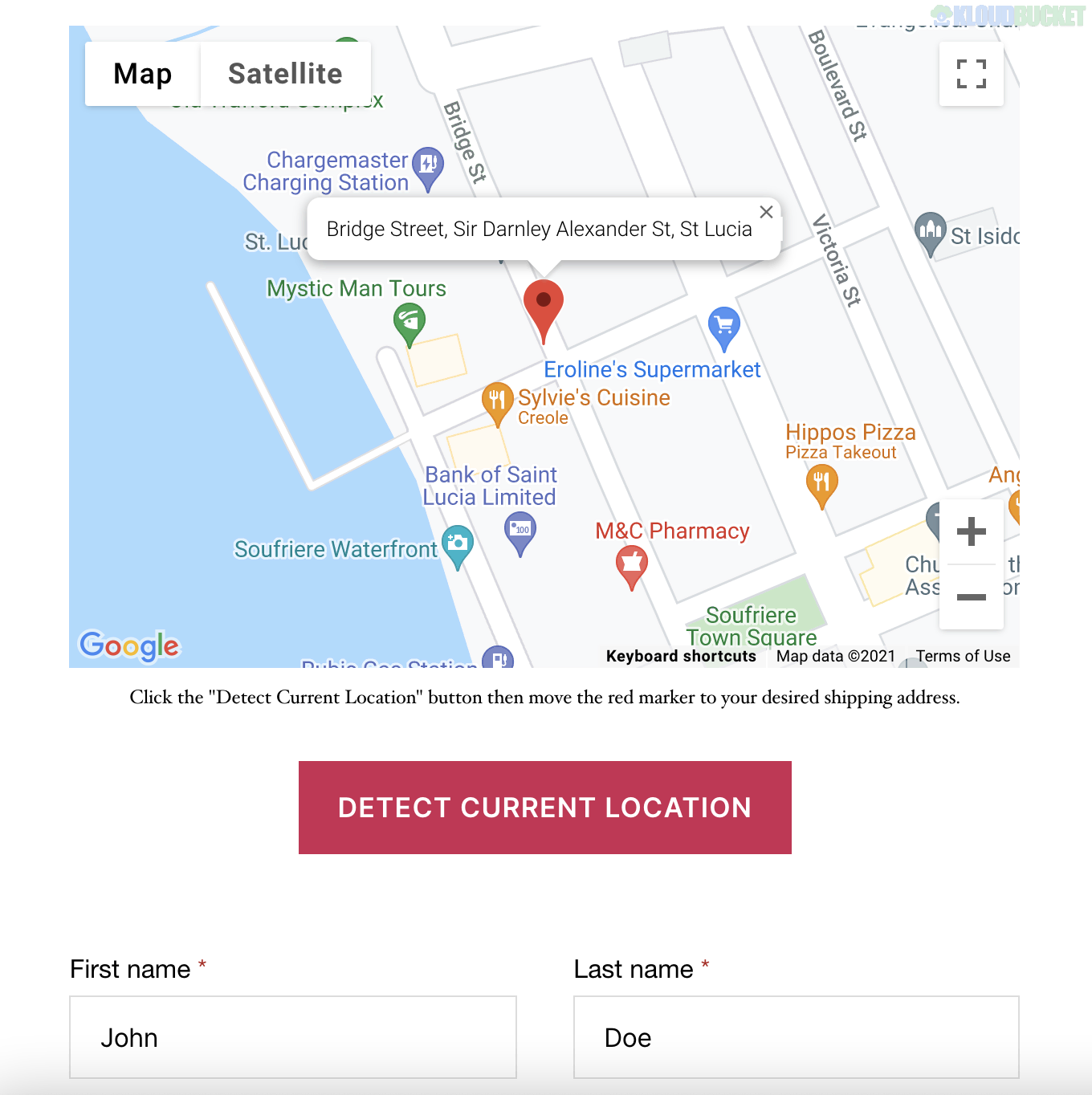
Google Maps Autocomplete: Uses the Google Places API to suggest addresses as the user types, reducing typos and failed deliveries.
Popup or Dropdown Display: You can choose how the address selection appears at checkout—either as a sleek modal popup or a simple dropdown menu.
Address Nicknames: Customers can label addresses (e.g., "Home," "Office," "Mom's House") to find them faster.
Override Address Formats: Deep customization options allow you to rearrange address fields to match specific country requirements.
If you are using the kits we discussed earlier, here is how this plugin adds value:
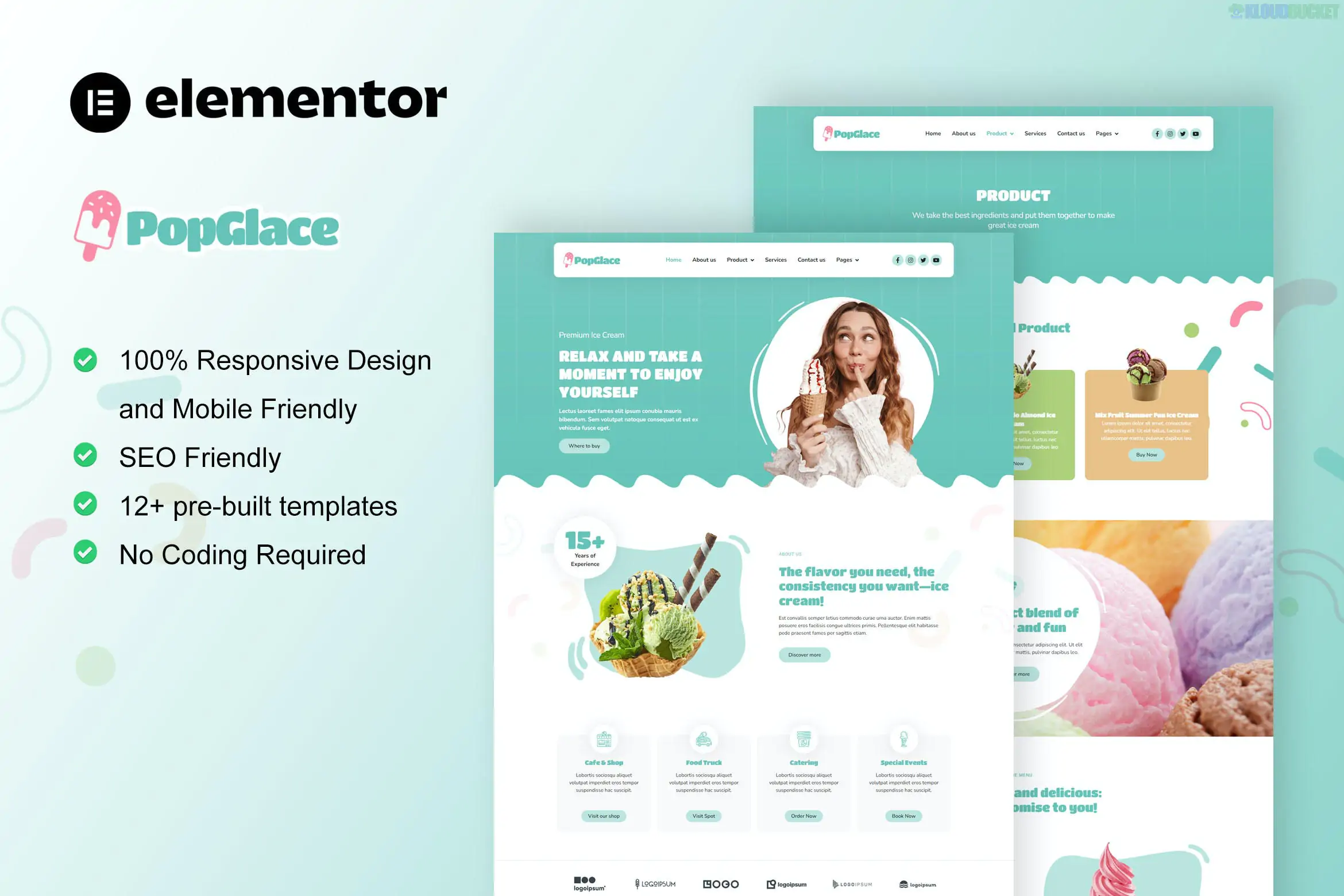
PopGlace (Ice Cream/Gifts): Perfect for customers who want to send different ice cream bundles to three different friends in one order.
Assista (Virtual Assistant): If you sell physical starter kits or corporate gifts, your clients can ship them to various remote team members simultaneously.
Hostink (Tech/Hardware): Ideal for businesses ordering hardware (like routers or servers) to be sent to different data center locations.
Enable Multi-Shipping: Go to WooCommerce > Manage Address > General Settings and check the box to "Allow products to be sent to different locations."
Configure Display: Choose between a Button or Link style for the "Add New Address" trigger to match your kit's aesthetic.
Set Limits: You can restrict the maximum number of addresses a user can save to prevent database bloat.
Checkout Field Editor Compatibility: ThemeHigh designed this to work perfectly with their Checkout Field Editor Pro, allowing you to add custom fields (like "Delivery Instructions") to every individual address in the multi-shipping list.
Feature
Free Version
Pro Version
Save Addresses
Limited (usually 2)
Unlimited
Multi-Ship per Order
Basic
Advanced (Per item/quantity)
Google Autocomplete
No
Yes
Guest User Support
Limited
Full (with time-based sessions)
Support
Community
Priority Developer Support
Would you like me to help you configure the "Address Format Override" settings to ensure your checkout fields perfectly match your local postal standards?
How to add multiple shipping addresses in WooCommerce
This video is relevant because it provides a visual demonstration of how to enable and test multiple shipping addresses, showing exactly how the checkout experience changes for your customers.
Subscribe to access unlimited downloads of themes, videos, graphics, plugins, and more premium assets for your creative needs.
.jpg) Help Us to Buy More New Theme/Plugin
Help Us to Buy More New Theme/Plugin
Published:
Jan 14, 2026 11:52 AM
Version:
v2.1.2.1
Category:
Author:
Smartslider3License:
GPL v2 or LaterTags: