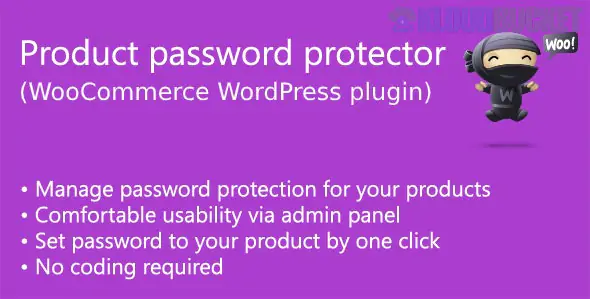
In late 2025, password-protecting WooCommerce products has become a standard requirement for wholesale (B2B) portals, client-specific photography galleries, and pre-launch "teaser" campaigns.
While WordPress has a basic built-in feature for this, professional stores typically use specialized plugins to handle multiple passwords, custom branding, and automatic expiry.
WordPress includes a native visibility setting that works for individual WooCommerce products. This is best for a quick fix on just one or two items.
How to do it: 1. Go to Products > All Products and click Edit on your product.
2. In the right-hand Publish box, find Visibility: Public.
3. Click Edit and select Password protected.
4. Enter your chosen password and click Update.
Limit: You must set this for every product manually, and you can only have one password per product.
For stores that need bulk protection, custom login screens, or user-role-based access, these plugins are the current industry leaders:
Plugin Name
Best For
Key Feature
WooCommerce Protected Categories
Wholesale & B2B
Protects an entire category (and its products) with one or multiple passwords.
PPWP Pro (Password Protect WP)
Advanced Privacy
Allows for expiring passwords and "Quick Access Links" that bypass the form.
Password Protected for WooCommerce
Multi-Rule Stores
Create complex rules to lock the whole store, specific pages, or just specific tags.
WooCommerce Private Store
Membership Stores
Completely hides the store from the public; only visible after login or password entry.
When choosing a protector for your 2026 strategy, ensure it supports these modern requirements:
Multiple Passwords: Allowing you to give "Customer A" and "Customer B" different passwords for the same protected product to track usage.
Whitelisting: Automatically allowing Admins or Logged-in VIPs to see the product without needing to enter the password.
SEO Control: Most modern plugins now include a toggle to "Allow Google to Crawl" protected pages.1 This is vital if you want the product to show up in search results even if the price/buy button is locked.
Custom Form Styling: The ability to add your company logo and brand colors to the password entry box so it doesn't look like a generic WordPress error page.2
If you have 50 products for a specific client, do not password-protect them individually.
Pro Tip: Put all those products into a "Hidden Category." Use a plugin like Barn2’s Protected Categories to lock the category.3 Any product you move into that category in the future will automatically be protected by the same password, saving you hours of admin work.
Would you like me to find a tutorial on how to style the password login form using Elementor or the WordPress Customizer?
Subscribe to access unlimited downloads of themes, videos, graphics, plugins, and more premium assets for your creative needs.
.jpg) Help Us to Buy More New Theme/Plugin
Help Us to Buy More New Theme/Plugin
Published:
Dec 17, 2025 16:04 PM
Version:
v1.6.3
Category:
Author:
OtherLicense:
GPL v2 or Later