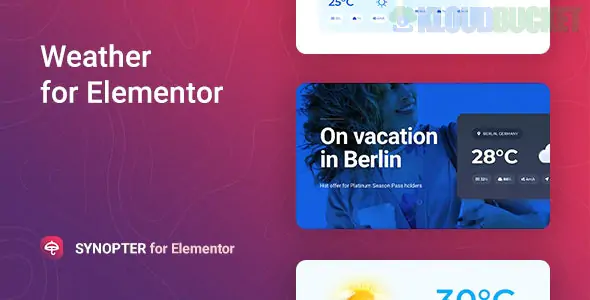
Synopter is a specialized Elementor add-on designed to display real-time weather data on your WordPress site. It’s particularly popular for travel blogs, local service businesses (like the carpentry templates you were looking at earlier), and event planners.
Here is a breakdown of how to get the most out of it and a few "gotchas" to watch for.
Powered by OpenWeatherMap: It uses the OpenWeather API to pull accurate data for virtually any city or coordinate globally.
Highly Customizable Layouts: Unlike basic widgets, Synopter allows you to toggle specific data points like:
Feels Like temperature
Wind Speed & Direction
Humidity & Pressure
Cloud Coverage
Visual Flair: It comes with multiple icon sets (including support for custom SVG icons) and 5 pre-designed templates to save you from designing from scratch.
Language & Unit Support: You can switch between Celsius, Fahrenheit, and Kelvin, and the widget supports over 40 languages for the weather descriptions.
To make the widget work, you can't just drag and drop; you need a "data bridge."
Get an API Key: You must sign up for a free account at OpenWeatherMap.org to get an API key.
Input the Key: In your WordPress dashboard, go to the Synopter settings (usually found under the "Merkulov" menu or the plugin's own tab) and paste your key.
The Widget: Open your page in Elementor, search for "Synopter," and drag it into your section.
Set the Location: You can enter a city name (e.g., "London, UK") or use exact coordinates if you're highlighting a specific remote location.
Glassmorphism: Synopter is known for its "Glassmorphism" design style. If you use a high-quality background image behind the widget and turn on the blur/transparency settings, it looks incredibly modern.
Caching: Since API calls can slow down a site, look for the Cache Time setting. Set it to 30 or 60 minutes. This prevents your site from "calling" the weather service on every single page load, which saves your API limit and improves speed.
Condition-Based Backgrounds: Some versions of the widget allow you to change the background of the section based on the weather (e.g., showing rain streaks if it's raining). It’s a bit advanced but great for immersion.
If you are running this on the Multisite network we discussed, remember:
API Limits: If you use the same free API key across 10 different subsites with high traffic, you might hit the "Free Tier" limit of the OpenWeather API quickly.
Centralized Key: You generally have to enter the API key on each subsite unless you use a snippet to "define" the key in your wp-config.php file (if the plugin supports it).
Are you trying to set this up for a specific city, or would you like to know how to style it to match that Carper template we looked at?
Subscribe to access unlimited downloads of themes, videos, graphics, plugins, and more premium assets for your creative needs.
.jpg) Help Us to Buy More New Theme/Plugin
Help Us to Buy More New Theme/Plugin