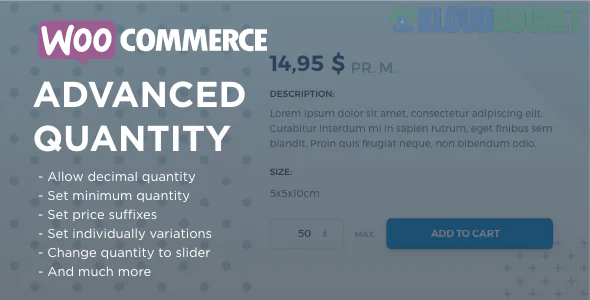
WooCommerce Advanced Quantity is a specialized category of plugins designed to give you precise control over how customers select product quantities. By default, WooCommerce only allows users to increase or decrease quantities by 1, with no limits on minimums or specific "step" increments.
As of 2026, these plugins are essential for wholesale (B2B) stores, stores selling items by weight (decimal quantities), or businesses that package items in fixed sets (e.g., "sold in packs of 6").
Most "Advanced Quantity" plugins (such as those by Addify, MorningTrain, or WPFactory) provide four main features:
Min/Max Limits: Force a minimum purchase (e.g., "Must buy at least 5") or cap a maximum (e.g., "Limit 2 per customer").
Quantity Steps (Intervals): Restrict purchases to specific multiples. For example, setting a step of 6 means a customer can only buy 6, 12, 18, etc.
Decimal Quantities: Allows selling products by weight or length (e.g., 1.5kg or 0.25 meters).
Quantity Dropdowns: Replaces the standard number input with a clean dropdown menu containing only allowed quantities.
Plugin Name
Best For
Approx. Price
Advanced Product Quantity (Addify)
Robust rule-based management and user-role restrictions.
$59 / year
Min/Max Quantities (Official Woo)
Simplest integration; ideal for basic limits and "Group of" rules.
$29 / year
Min Max Step Quantity (WPFactory)
Feature-rich free version; great for custom dropdowns and labels.
Free / $49 Pro
Advanced Quantity (MorningTrain)
Clean interface on CodeCanyon; popular for decimal support.
$25 (Lifetime)
Global Rules: Navigate to WooCommerce > Settings > Product Quantity. Here you can set a store-wide minimum (e.g., "No order can be less than 2 items").
Product Level: Edit a specific product and look for the "Quantity Rules" tab in the Product Data box.
Minimum: Set to 10.
Maximum: Set to 50.
Step: Set to 5.
Result: Customer can only select 10, 15, 20... up to 50.
User Role Restrictions: (Premium feature) Set it so that "Wholesale" users must buy a minimum of 100, while "Retail" customers have no minimum.
If you want to ensure the entire cart meets a certain quantity (e.g., "You must have at least 12 items in your cart to checkout, regardless of which products they are"), look for plugins that support Cart-Based Rules. This is common in the wine and beverage industry where shipping is optimized for boxes of 6 or 12.
Would you like me to help you write a custom rule for a specific product type, or do you need help troubleshooting a conflict with your theme's quantity buttons?
Subscribe to access unlimited downloads of themes, videos, graphics, plugins, and more premium assets for your creative needs.
.jpg) Help Us to Buy More New Theme/Plugin
Help Us to Buy More New Theme/Plugin
Published:
Jan 04, 2026 16:37 PM
Version:
v3.0.6
Category:
Author:
OtherLicense:
GPL v2 or Later