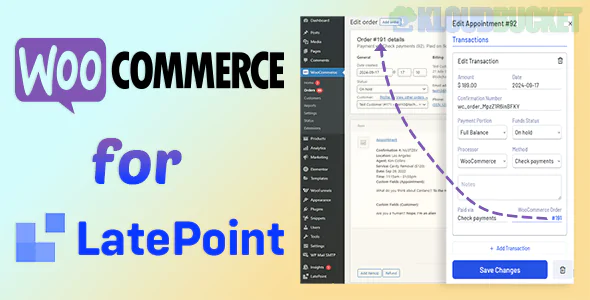
The WooCommerce for LatePoint add-on is a powerful bridge that connects the LatePoint booking system with the WooCommerce ecosystem. By using this addon, you move the payment processing away from LatePoint's built-in simple checkout and into the robust WooCommerce cart and checkout flow.
While LatePoint has its own payment integrations (Stripe, PayPal), the WooCommerce addon is essential if you need:
Wider Payment Gateways: Access to 100+ payment methods supported by WooCommerce (e.g., local banks, Apple Pay, Google Pay).
Taxes & Compliance: Use WooCommerce's advanced tax calculation tools (like TaxJar or Avalara).
Coupons & Discounts: Use the more complex WooCommerce coupon system for your bookings.
Bundling: Allow customers to book an appointment and buy a physical product (like massage oil or a book) in a single checkout.
Invoicing: Generate professional PDFs and invoices using WooCommerce extensions.
Product Sync: When you create a service in LatePoint, it effectively communicates with WooCommerce.
The Redirect: When a customer finishes selecting their time and date in the LatePoint booking widget, instead of seeing the LatePoint payment form, they are redirected to the WooCommerce Checkout page.
Order Completion: Once the payment is confirmed in WooCommerce, the appointment status in LatePoint automatically switches from "Pending" to "Approved".
Step 1: Install and activate both LatePoint and WooCommerce.
Step 2: Install the WooCommerce for LatePoint addon.
Step 3: Go to LatePoint > Settings > Payments and select WooCommerce as your payment method.
Step 4: Ensure your LatePoint services have a price assigned. The addon will handle the "Virtual" and "Downloadable" product settings in the background for you.
Added Friction: Instead of a simple 1-step booking, the user has to go through the standard WooCommerce cart/checkout pages, which can sometimes lower conversion rates for simple services.
Plugin Heavy: You are running two large systems (LatePoint + WooCommerce) together, which requires a good hosting environment to maintain speed.
Pro Tip: If you want to keep the process fast, use a "Direct Checkout" plugin for WooCommerce. This will skip the "Cart" page and take the user straight from the LatePoint calendar to the "Payment" page.
Would you like me to show you how to hide the LatePoint-specific products from your main WooCommerce Shop page so they only show up during booking?
Subscribe to access unlimited downloads of themes, videos, graphics, plugins, and more premium assets for your creative needs.
.jpg) Help Us to Buy More New Theme/Plugin
Help Us to Buy More New Theme/Plugin
Published:
Jan 07, 2026 20:06 PM
Version:
v10.7.0
Category:
Author:
OtherLicense:
GPL v2 or LaterTags: