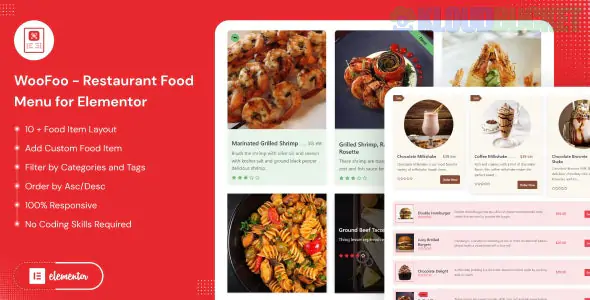
WooFoo is a specialized Elementor add-on developed by techeshta (available on CodeCanyon and Envato Elements) designed to create professional, interactive digital food menus.1 It bridges the gap between simple text lists and a full WooCommerce store, allowing restaurant owners to showcase their dishes with a focus on high-quality visuals and user experience.2
Unlike generic list widgets, WooFoo offers dedicated functionality for "Custom Food Items" (where you manually enter data) and "WooCommerce Products" (where it pulls from your existing shop).3
The plugin includes 10+ unique design styles to ensure your menu matches your brand's aesthetic:4
Grid Layout: A clean, multi-column view perfect for main courses and appetizers.
List Layout: A classic, sophisticated "menu card" style often used for fine dining or wine lists.
Slider/Carousel: Ideal for highlighting daily specials or "Chef's Recommendations" in a limited space.
Isotope Filtering: Allows customers to filter the menu by categories (e.g., "Vegan," "Spicy," or "Desserts") without reloading the page.5
Feature
Description
Dual Data Source
Choose between "Custom" (manual entry) or "WooCommerce" to pull live shop products.
Custom Elements
Add specific food details like Customer Ratings, Highlighted Ribbons (e.g., "New" or "Best Seller"), and Currency Symbols.
Interactive Hover
Includes pre-defined animations that trigger when a user hovers over a dish, adding a modern feel.
Global Controls
Toggle the visibility of prices, descriptions, ratings, and "Add to Cart" buttons for the entire menu.
Responsive Grid
Dedicated column controls to ensure the menu looks just as good on a smartphone as it does on a desktop.
WordPress: Compatible with WordPress 6.0+ and the latest 6.7.x versions.6
Elementor: Works with both the Free and Pro versions of Elementor.
WooCommerce: Required only if you want to use the "WooCommerce Product" data source for online ordering.
SEO & Performance: Lightweight code ensures fast loading times, which is critical for customers browsing on mobile data.
Installation: Upload the woofoo-restaurant-menu.zip file via Plugins > Add New.7
Add Items: * Custom: Go to the WooFoo menu in your dashboard and create individual food items.8
WooCommerce: Ensure your dishes are already added as products in WooCommerce.
Elementor Editor: Open your page with Elementor and search for the "WooFoo" widget.
Configure Source: In the widget settings, choose your Source Type (Custom or WooCommerce) and select your layout style.9
Styling: Use the "Style" tab to adjust colors, typography, box shadows, and border-radius to match your site's design.10
The primary advantage of WooFoo is its simplicity and focus.11 Many restaurant themes are "heavy" and hard to customize. WooFoo gives you a "plug-and-play" widget that works with any theme.12 It is particularly effective for businesses that want an elegant digital menu without the complexity of a full-scale delivery platform, although it integrates perfectly with WooCommerce if you decide to accept online orders later.
Would you like me to help you set up an Isotope filter for your menu categories, or do you need assistance styling the "Add to Cart" buttons for your WooCommerce products?
Subscribe to access unlimited downloads of themes, videos, graphics, plugins, and more premium assets for your creative needs.
.jpg) Help Us to Buy More New Theme/Plugin
Help Us to Buy More New Theme/Plugin
Published:
Dec 25, 2025 17:09 PM
Category:
Author:
OtherLicense:
GPL v2 or LaterTags: