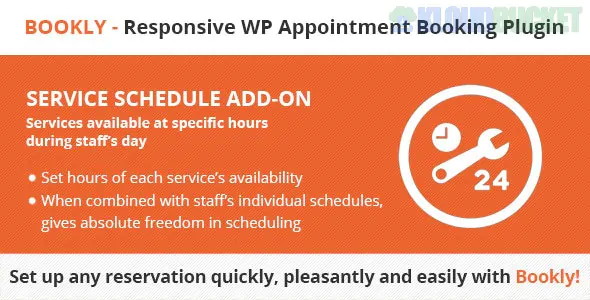
The Bookly Service Schedule (Add-on) is a specialized extension for the Bookly Pro booking system that allows you to set granular availability for individual services, rather than just relying on general staff working hours.
In late 2025, it remains an essential tool for businesses that offer specific services only during certain windows of the day or week—such as a medical clinic that only performs "X-rays" on Tuesday mornings or a spa that offers "Hot Stone Massage" only on weekends.
Service-Specific Hours: You can restrict a service to be available only during a specific time range (e.g., 9:00 AM – 12:00 PM), even if the staff member providing it works until 5:00 PM.
Weekly Availability: Define exactly which days of the week a particular service can be booked.
Staff-Service Overlap: The system automatically checks for the "overlap" between a staff member’s working hours and the service’s scheduled hours. A time slot is only offered to the customer if both the staff and the service are available.
Custom Breaks: Set breaks specifically for a service to prevent bookings during maintenance or specific preparation periods.
Special Days Integration: When paired with the Bookly Special Days (Add-on), you can override standard service hours for specific dates (e.g., making a service "OFF" on a holiday even if the staff is working).
Feature
Details
Developer
Bookly (Nota-info)
Required Plugin
Bookly Pro
Customization
Per-service schedule tab in backend
Conflict Handling
Prevents booking outside service-specific windows
Latest Status
v3.5 (Maintained for WordPress 6.7+ and PHP 8.4+)
To implement a restricted service schedule, follow these steps in your WordPress dashboard:
Installation: Ensure Bookly Pro is active, then install and activate the Service Schedule Add-on.
Configuration: Navigate to Bookly > Services. Select the service you want to restrict and click the "Schedule" tab.
Define Windows: By default, services follow the staff schedule. Uncheck the "Use staff schedule" option (if applicable in your version) or simply set the new custom start and end times for each day.
Testing: View your front-end booking form. If a staff member works 8:00 AM – 8:00 PM but the service is set to 2:00 PM – 4:00 PM, customers will only see slots available in that 2-hour afternoon window.
Medical & Dental Clinics: Restricting complex procedures (like surgeries) to morning slots when the full team is present.
Educational Institutions: Scheduling specific classes or "Office Hours" that only happen on certain days of the week.
Equipment-Dependent Services: If a service requires a specific machine that is only available on Mondays and Wednesdays, this add-on prevents bookings on other days.
Promotional Services: Offering "Happy Hour" or discounted services that are only bookable during off-peak hours.
Pro Tip: If you want to change the price based on these specific hours (e.g., cheaper bookings in the morning), you should use the Bookly Special Hours (Add-on) instead, as the Service Schedule Add-on focuses purely on availability, not dynamic pricing.
Would you like me to help you configure a "Service Schedule & Special Days" combination to handle your upcoming holiday booking limits?
Learn how to add extras to your services with Bookly
This video is helpful because it demonstrates the modular nature of Bookly add-ons and how they integrate into the "Service" settings, which is the same location where you will find the Service Schedule configurations.
Subscribe to access unlimited downloads of themes, videos, graphics, plugins, and more premium assets for your creative needs.
.jpg) Help Us to Buy More New Theme/Plugin
Help Us to Buy More New Theme/Plugin
Published:
Dec 17, 2025 16:01 PM
Version:
v3.6
Category:
Author:
OtherLicense:
GPL v2 or LaterTags: