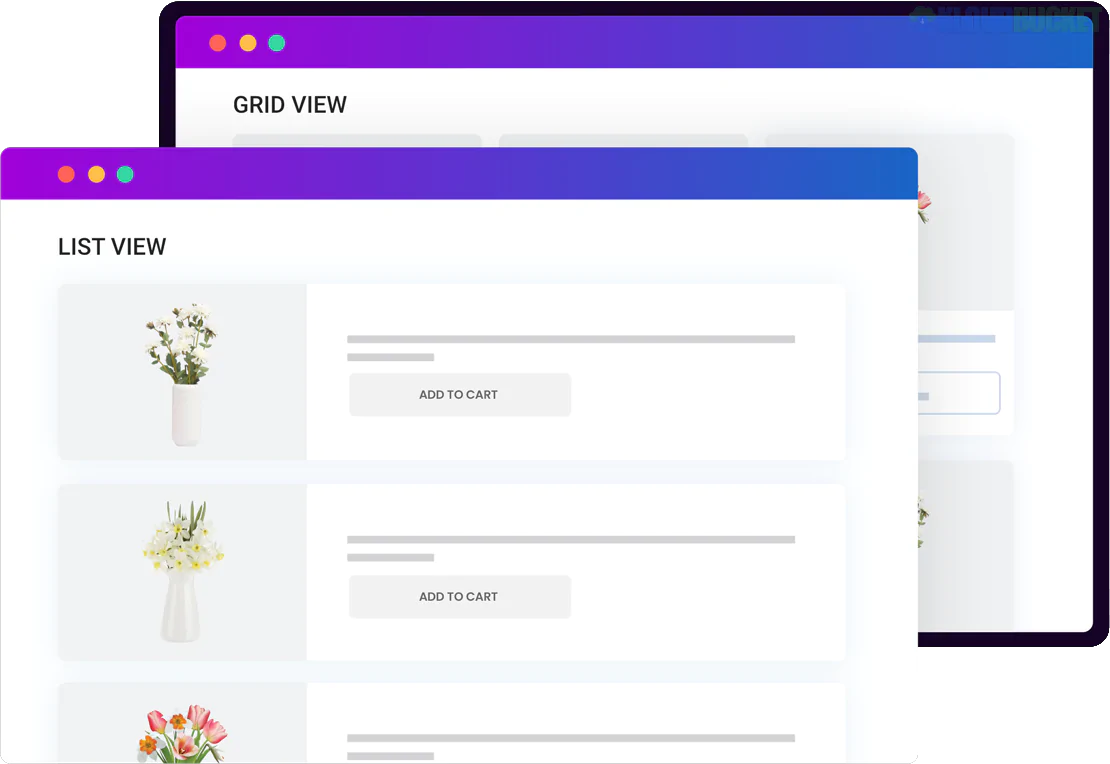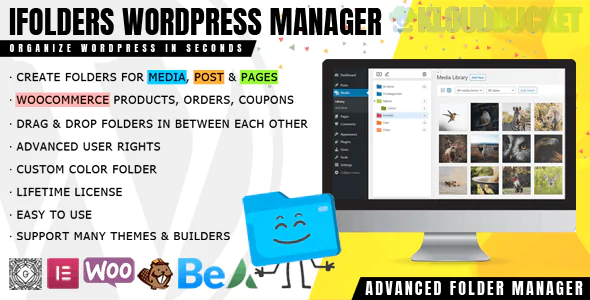
iFolders (Ultimate WordPress & Woo Folder Manager) is a robust organizational tool designed to clean up the backend of your WordPress site. Unlike standard file managers that only handle images, iFolders allows you to group Media, Posts, Pages, and WooCommerce elements into a virtual folder structure.1
In 2026, it is highly valued by store owners and agencies managing large-scale sites who need to find specific assets or orders without endless scrolling.
The "Ultimate" version of this plugin (by Avirtum) is designed for speed and complex data management.2
No Broken Links: The folders are "virtual," meaning they don't change the actual URL or file path of your assets. You can move an image into a "Summer Sale" folder without breaking the images on your live pages.
Drag-and-Drop: You can move multiple items (photos, products, or blog posts) into folders simultaneously.4
Unlimited Hierarchy: Create folders within folders (subfolders) to match your specific business workflow.5
This is the "Woo" part of the plugin that makes it unique compared to basic media organizers:7
Product Folders: Group products by Season, Supplier, or Status.
Order Management: Organize orders into folders like "High Priority," "Wholesale," or "Returns" to help your fulfillment team.8
Coupon Organization: If you run hundreds of promotions, you can sort coupons by campaign or expiration month.
Color-Coded Folders: Assign colors to folders for instant visual recognition (e.g., Green for "Live," Red for "Urgent").
User Permissions: Restrict folder access based on user roles. You can allow a "Shop Manager" to see the "Orders" folder but hide the "Website Design" media folder from them.
Zip Download: Select a folder and download its entire contents as a .zip file directly from the WordPress dashboard.
Feature
Free Version
Pro Version (Ultimate)
Media Library Folders
Unlimited
Unlimited
Gutenberg Support
✅ Yes
✅ Yes
Folder Colors
❌ No
✅ Yes
Folders for Posts/Pages
❌ No
✅ Yes
WooCommerce Folders
❌ No
✅ Yes (Products, Orders, Coupons)
Access Control (Roles)
❌ No
✅ Yes
While competitors like FileBird or HappyFiles are excellent for media, iFolders stands out because it treats Post Types (like Products and Orders) with the same importance as images.9
Pro Tip: If you are migrating from another plugin, iFolders often includes an Import tool that can "read" the folder structures from FileBird or folders created by the "Enhanced Media Library" plugin, saving you hours of re-organizing.
Install: Search for "iFolders" in the WordPress Plugin repository or upload the Pro .zip.
Toggle Sidebar: Go to your Media Library; you will see a new resizable sidebar on the left.10
Create Folder: Click the + icon, name your folder, and choose a color.11
Drag Content: Switch your media view to "Grid" and simply drag your items into the new folder in the sidebar.12
Would you like me to help you find the specific WooCommerce settings to enable "Order Folders," or are you looking for a comparison between iFolders and HappyFiles for a high-traffic site?
Subscribe to access unlimited downloads of themes, videos, graphics, plugins, and more premium assets for your creative needs.
.jpg) Help Us to Buy More New Theme/Plugin
Help Us to Buy More New Theme/Plugin
Published:
Jan 13, 2026 16:01 PM
Version:
v1.3.7
Category:
Author:
OtherLicense:
GPL v2 or LaterTags: