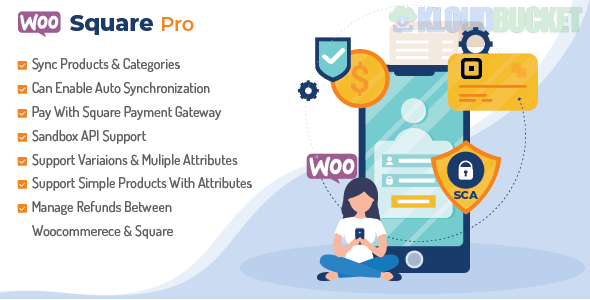
Synchronizing Square and WooCommerce is crucial for businesses that sell both online and in-person, ensuring that your inventory, sales, and customer data are consistent across both platforms.
The most common and highly recommended method is using a dedicated WordPress/WooCommerce plugin.
Here is a step-by-step guide focusing on the most popular solution, the official "Square for WooCommerce" plugin:
This is the official extension developed by WooCommerce, making it the most robust and seamless integration method.
A live WooCommerce store running on WordPress.
An active Square account.
A valid SSL certificate on your WooCommerce site (required for payments and security).
Install the Plugin: Log in to your WordPress dashboard, navigate to Plugins $\rightarrow$ Add New, and search for "Square for WooCommerce."
Install & Activate: Click Install Now, then Activate the plugin.
Connect to Square: Go to WooCommerce $\rightarrow$ Settings $\rightarrow$ Square. Click the "Connect with Square" button.
Authorize Access: You will be redirected to the Square login page. Log in to your Square account and grant the necessary permissions for the plugin to access and modify your data.
Redirect: Follow the prompts to be redirected back to your WooCommerce site to complete the setup.
Once connected, you must tell the plugin how to handle data synchronization.
Sync Area
Configuration Options
Business Location
Choose the Square location you want to link with your WooCommerce store (crucial if you have multiple locations).
Sync Settings
Decide which platform is the System of Record (SOR) for products:<ul><li>WooCommerce: Changes made in WooCommerce overwrite Square data.</li><li>Square: Changes made in Square overwrite WooCommerce data (recommended if you primarily manage products via Square POS).</li></ul>
Product/Inventory
Enable Product Sync: Check this to keep product names, prices, categories, and inventory counts synchronized.
Order Fulfillment
Enable bidirectional order fulfillment sync: (Optional, but recommended) This ensures online orders appear in your Square dashboard, and order status updates from Square (like marking an order "Completed") sync back to WooCommerce.
Payment Gateway
Ensure the Square payment gateway is enabled under WooCommerce $\rightarrow$ Settings $\rightarrow$ Payments so you can accept credit cards, Apple Pay, and Google Pay.
A successful integration provides two-way synchronization for key data:
Data Type
Square ↔ WooCommerce
Benefit
Inventory (Stock)
Real-Time/Hourly: When a product is sold on one channel, the inventory count automatically decreases on the other to prevent overselling.
Prevents stock discrepancies.
Product Data
Bi-Directional: Product names, prices, and images are synced based on the SOR you configured.
Ensures consistent pricing and branding.
Orders
Bi-Directional: WooCommerce orders sync to Square, and order statuses update from Square to WooCommerce.
Centralized order management.
Customers
Partial: Customer data may sync to Square to enable features like saved cards and loyalty.
Faster checkout for returning customers.
Would you like me to find a troubleshooting guide for common sync errors, or are you interested in premium third-party solutions that offer even more advanced features?
Subscribe to access unlimited downloads of themes, videos, graphics, plugins, and more premium assets for your creative needs.
.jpg) Help Us to Buy More New Theme/Plugin
Help Us to Buy More New Theme/Plugin
Published:
Dec 07, 2025 12:11 PM
Version:
v7.5
Category:
Author:
OtherLicense:
GPL v2 or LaterTags: