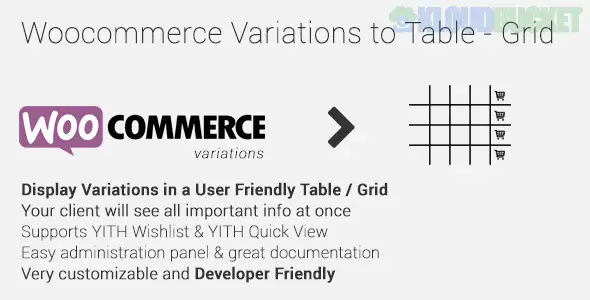
WooCommerce Variations to Table - Grid (often associated with the popular version by nitroweb) is a functional plugin designed to replace the standard WooCommerce variation dropdowns with a structured, user-friendly table or grid.
By 2026, it remains a favorite for Wholesale (B2B) and Bulk Order sites where customers need to compare all available options (like sizes and colors) and add multiple items to their cart at once.
Bulk Add-to-Cart: Includes a "Select All" checkbox or individual quantity fields for each variation, allowing users to add 5-10 different variations to the cart with one click.
Customizable Columns: You can choose exactly what to show in the table:
Thumbnail Image (with lightbox popup).
SKU and Stock Status (In Stock, Low Stock, or Out of Stock).
Attribute descriptions (e.g., fabric type, weight).
Price and "Total" columns.
Responsive Design: Includes a "Mobile Friendly" toggle to stack the table data on smaller screens.
Shortcode Support: Use [woo-variations-table id="PRODUCT_ID"] to place the grid anywhere, such as in a custom tab or a blog post.
Live Search & Sorting: Allow customers to filter the table instantly by typing an attribute name (e.g., "Red") or sorting by price.
There are several plugins with similar names, but the two industry leaders are:
Provider
Typical Price
Key Strength
Nitroweb (CodeCanyon)
~$30 (One-time)
Best for developer-friendly hooks and custom CSS.
WPXtension (PVT)
~$49 / year
Best for "Pre-defined" templates and styling presets.
Addify (Woo Marketplace)
~$39 / year
High compatibility with official WooCommerce extensions.
Installation: Install your chosen plugin and navigate to WooCommerce > Settings > Variations Table.
Global Settings: Define which columns should be visible by default (e.g., Image, Price, Quantity).
Product Level Override: Go to the "Edit Product" screen for a specific variable item. Look for the "Variations Table" tab to enable the grid specifically for that product.
Positioning: Choose where the table appears—usually "After Product Summary" or "In a Custom Tab."
While Variation Swatches (circles/images) are great for fashion and visual products, a Grid Table is superior for:
Industrial Parts: Where customers need to see specific SKUs and technical specs.
Wholesale Stores: Where users order 10 of "Size S" and 20 of "Size L" simultaneously.
Complex Products: Items with more than 3 attributes (e.g., Color + Size + Material + Fit) that would make dropdowns confusing.
Variations to Table: Lists variations in a vertical row-by-row format (best for single attributes like "Size").
Bulk Variations (Matrix): Displays a 2D grid/matrix (e.g., Sizes on the X-axis and Colors on the Y-axis), which is the fastest way for bulk-entry.
Would you like me to help you find a specific plugin version that works with your current theme, or would you like to see the CSS code to style the table headers to match your brand?
Subscribe to access unlimited downloads of themes, videos, graphics, plugins, and more premium assets for your creative needs.
.jpg) Help Us to Buy More New Theme/Plugin
Help Us to Buy More New Theme/Plugin
Published:
Jan 06, 2026 17:46 PM
Version:
v1.5.1
Category:
Author:
OtherLicense:
GPL v2 or LaterTags: