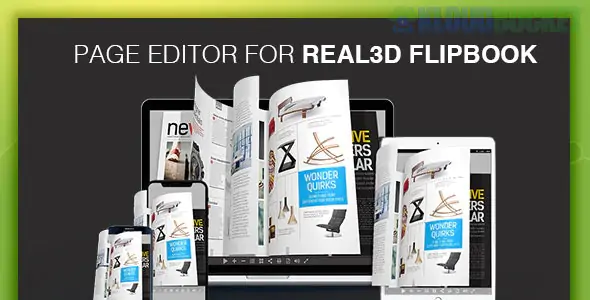
The Page Editor for Real3D Flipbook is a premium add-on for the Real3D Flipbook WordPress plugin. While the base plugin excels at converting PDFs and images into realistic 3D books, the Page Editor transforms these static pages into a fully interactive multimedia experience.
It allows you to place digital content directly "on top" of your flipbook pages using a visual, drag-and-drop interface.
The Page Editor is designed for creators of interactive magazines, digital catalogs, and educational materials:
Visual Drag-and-Drop Editor: You don't need to write code to position elements. You can visually move and resize items on any page of your flipbook.
Multimedia Embedding:
Video: Add self-hosted .mp4 videos or embed YouTube/Vimeo players directly onto the page.
Audio: Embed .mp3 music or voiceovers that can be set to autoplay when a user turns to that page.
iFrames: Embed external websites, Google Maps, or social media posts (Instagram/Twitter) inside the book.
Interactive Links:
External Links: Create "Hotspots" or buttons that link to external websites.
Internal Links: Create a custom navigation system (e.g., "Click here to go to Page 50").
Spotlight Items: Create clickable areas that open a high-resolution image, video, or iframe in a Lightbox popup over the flipbook.
Live Preview: View exactly how your interactive elements will look and behave before you publish the changes.
Real3D Flipbook PRO: This is an add-on, not a standalone plugin. You must have the Pro version of the main Real3D Flipbook plugin installed and activated.
PHP Version: It is optimized for PHP 7.4 through 8.2+.
Browser Support: Since it uses HTML5 and WebGL, it is fully compatible with all modern browsers (Chrome, Safari, Firefox, Edge).
Enhanced Conversion: For digital catalogs, you can place "Buy Now" buttons directly on product images that link to your WooCommerce store.
Rich Storytelling: Magazines can feature "Behind the Scenes" video interviews that play right next to the written article.
Engagement: Adding background music or sound effects (like a real page-turning sound) makes the digital experience feel more premium and immersive.
Activate: After installing the add-on, go to your existing flipbook list.
Edit: Click on the "Edit" button for a specific flipbook.
Open Editor: Navigate to the "Pages" tab and look for the "Page Editor" button or the "HTML Content" section.
Add Elements: Select an element (Video, Link, etc.) from the toolbar, click on the page to place it, and then drag the corners to resize.
Save: Click "Save Changes" to update your shortcode automatically.
Would you like me to show you how to link a specific button in your flipbook to a WooCommerce "Add to Cart" action?
Subscribe to access unlimited downloads of themes, videos, graphics, plugins, and more premium assets for your creative needs.
.jpg) Help Us to Buy More New Theme/Plugin
Help Us to Buy More New Theme/Plugin
Published:
Jan 02, 2026 15:32 PM
Version:
v1.2.2
Category:
Author:
OtherLicense:
GPL v2 or LaterTags: